
Browse & search
Single property layouts
One listing template, the two layout shape controls that reshape it, and the blocks you can rearrange.
One template, reshaped by settings
Every listing renders through one Elementor library template:
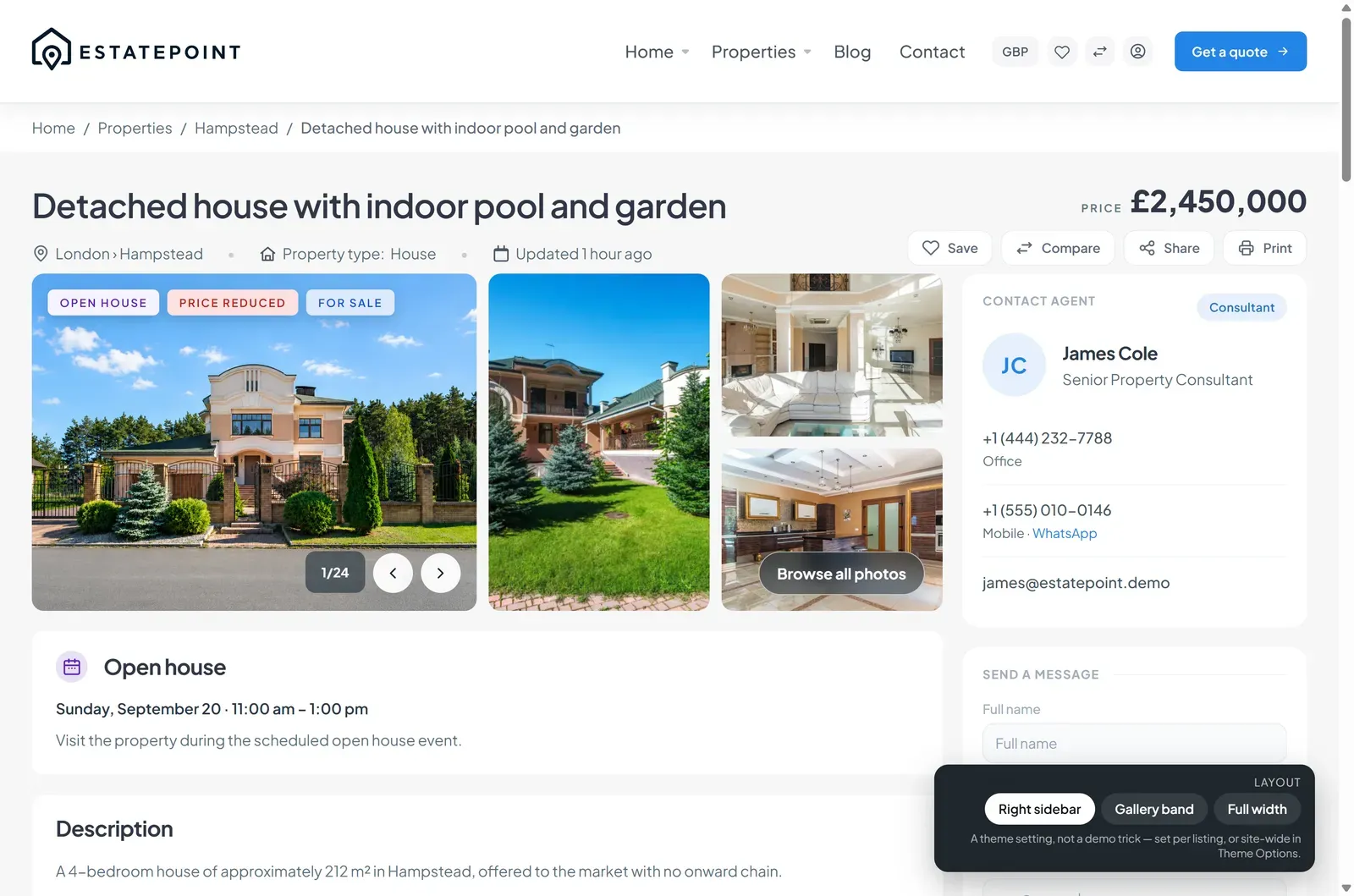
Theme Options → Property → Property Detail shows which template is bound, with Edit in Elementor and Restore default template. Block order, visibility, and block styling all live in that template.
What the template does not decide is the page shape. Two controls on the same tab do:
| Control | Options | What moves |
|---|---|---|
| Content layout | Right sidebar (default) · Full width (sidebar below) | Whether the sidebar sits beside the content on desktop or drops beneath it |
| Gallery placement | Inside the content column (default) · Full width above the content | Whether the gallery shares the content column or spans the full width above it |
Nothing is removed either way — the sidebar widgets still render, they just move. Two controls give four shapes without a second template to maintain.
Overriding one listing
A single listing can depart from the site default: open the property and use the Display settings box, which offers the same two controls plus Use site default. A penthouse can run full width with a gallery band while every apartment keeps the sidebar — no extra template, no routing table.
Because the shape is resolved per listing rather than baked into the document, the Elementor canvas always shows the default shape. Check a real listing page to see an override.
The blocks on a listing page
Open the listing template in Elementor and you can reorder, remove, or restyle these. All of them read the current listing, so nothing is typed twice:
| Block | Shows |
|---|---|
| Property Breadcrumb | Trail back to the archive |
| Property Header | Title, labels, key meta, price |
| Property Gallery | Photos, with lightbox |
| Property Description | The listing description |
| Property Overview | Key facts grid — beds, baths, area, year, reference |
| Property Amenities | Selected feature terms |
| Property Floor Plans | Floor plan set |
| Property Video / Virtual Tour | Video and tour cards |
| Property Address & Map | Address and map |
| Property Nearby | Points of interest entered on the listing |
| Property Energy Performance | Energy rating card |
| Property Open House | Scheduled viewing notice |
| Property Downloads | Listing documents |
| Property Contact Info | Consultant / office card |
| Property Inquiry Form | Standalone inquiry form |
| Property Contact & Enquiry | Contact card and form combined |
| Property Related Listings | Similar properties |
Each block has a Visibility group, so a block can be present in the template but hidden when the listing has nothing to show. A listing with no floor plans does not print an empty floor plans heading.
Behavior settings
The same Property Detail tab holds two things the template cannot own, because they concern the page shell:
- Sticky sidebar — the contact column follows the scroll on desktop.
- Mobile contact bar — a fixed bar on phones with the assigned consultant and Call, WhatsApp, and Email actions, when contact details exist.
Editing tips
Blocks show placeholders in the editor. Property blocks need a listing for context. Inside the library template they render sample or empty states — check your work on a real listing page.
Style once, apply everywhere. Every listing uses the template you are editing. Fixing spacing on one listing fixes it on all of them.
Restore is the escape hatch. If a template gets into a state you cannot undo, Restore default template re-imports the bundled version. Your listings are untouched; only the layout resets.
Consultant pages
Consultant profiles work the same way, with their own blocks — Consultant — Masthead, Consultant Bio, Consultant Listings — in the consultant single template. See Consultants.