
Site setup
Featured Content
Pin which listings, posts, consultants, and testimonials appear in homepage and sidebar grids.
What it does
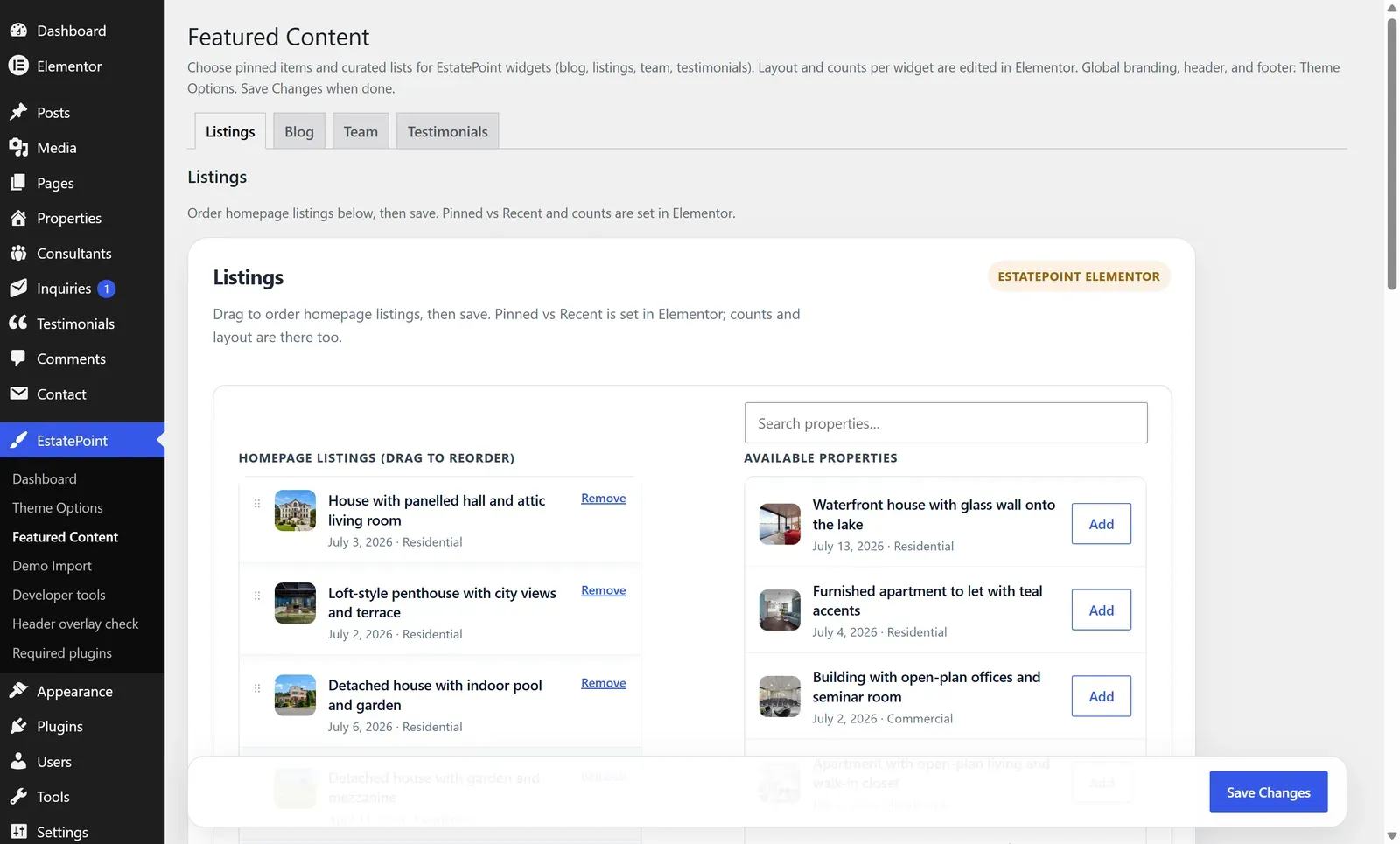
EstatePoint → Featured Content is a curation screen. It stores an ordered list per content type, and every grid widget set to the Pinned content source reads it.
That keeps editorial choices out of Elementor: you reorder the homepage listing grid without opening the page builder, and multiple widgets across the site stay in sync.
The four tabs
| Tab | Feeds |
|---|---|
| Listings | Listings grids, Hero Listings Spotlight, sidebar listings cards |
| Blog | Blog grids and sidebar article lists |
| Team | Team grids and sidebar team cards |
| Testimonials | Testimonial carousels |
Each tab is a picker plus a drag-to-order list. Search for an item, add it, drag to reorder, remove what should drop off. Save Changes applies.
Pinned vs recent
Every grid widget decides for itself:
- Pinned — exactly the items on this screen, in this order. Predictable, and the right choice for a homepage.
- Recent — the newest published items, updating automatically. Good for a blog strip you do not want to maintain.
If a widget is set to Pinned and the list is empty, the widget falls back to recent items rather than rendering an empty band.
Pinning from the editor
Two content types can also be pinned without leaving their editor:
- Property — the Homepage listings toggle in the Consultant & marketing tab of Listing details.
- Consultant — the Homepage team toggle.
- Testimonial — the Homepage testimonials toggle.
These write to the same lists. New items are appended; use Featured Content when order matters.
Behavior worth knowing
- Unpublishing or trashing a pinned item removes it from the front end. The pin is ignored rather than breaking the grid.
- A listing that passes its Listing expiry date is moved to draft and dropped from the pinned list automatically.
- Widgets set their own count. Pin twelve listings and a three-column grid showing six will use the first six.