
Site setup
Homepage & pages
Build the front page and inner pages from EstatePoint's Elementor blocks.
The front page
Demo import creates the home page and sets it under Settings → Reading. To change it, open the page and press Edit with Elementor.
The page is a stack of EstatePoint widgets. Drag them into a new order, delete what you do not need, and add more from the EstatePoint category in the widget panel.
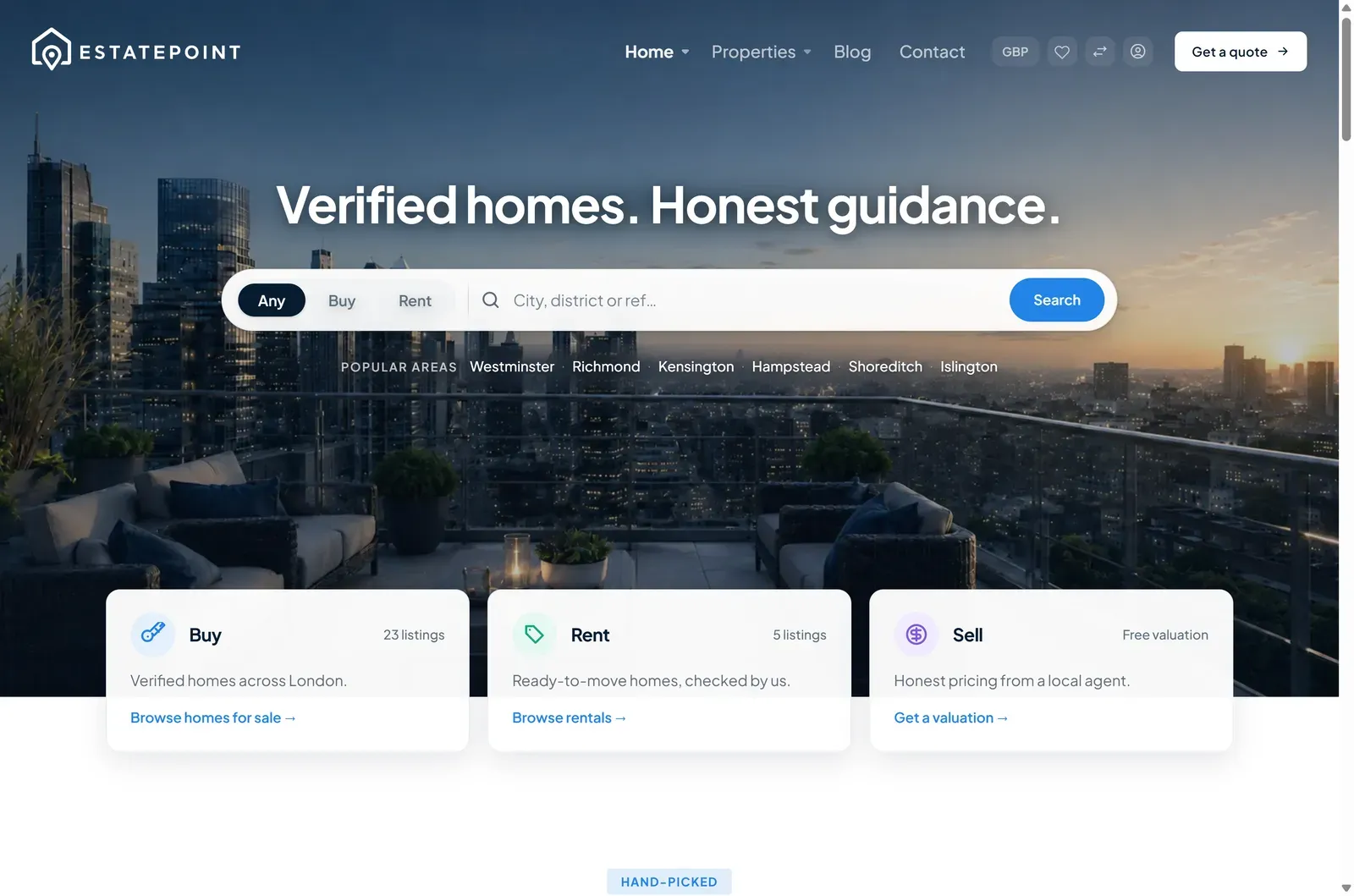
A typical order:
- A hero — Hero Search, Hero Map, Hero Listings Spotlight, or Hero Banner
- Featured Locations — city and district entry points
- Listings — featured or recent properties
- Why Choose Us — trust statistics
- Team — consultants
- Testimonials
- Blog — recent articles
- CTA — closing call to action
Choose a hero
| Widget | Use it when |
|---|---|
| Hero Search | Search is the primary action; headline plus a search bar with Any/Buy/Rent tabs and suggestions |
| Hero Map | Location-led browsing; a live map with pins and an embedded search |
| Hero Listings Spotlight | Inventory is the pitch; a carousel of listing slides |
| Hero Banner | Classic marketing hero — image, headline, one call to action |
Only the first widget on the page controls header overlay. Whichever hero you pick, its Header overlay control decides whether the header floats over it.
Which listings appear in a grid
Grid widgets — Listings, Team, Blog, Testimonials — have a Content source control:
- Pinned reads the curated order from EstatePoint → Featured Content.
- Recent pulls the newest published items automatically.
See Featured Content.
Inner pages
Create a page, press Edit with Elementor, then compose it from the same widget set. Useful blocks for inner pages:
| Page | Blocks |
|---|---|
| About | Masthead, About Section, Why Choose Us, Team, Testimonials, CTA |
| Contact | Masthead, Contact, Office Map |
| Services / landing | Masthead, About Section, Listings, CTA |
Masthead gives inner pages the masthead that archive pages get automatically — breadcrumb, icon, title, and a lead line.
Page templates
Some pages need a specific theme page template, chosen in the page’s Template setting:
| Template | Purpose |
|---|---|
| EstatePoint — Elementor landing | Full-width canvas with no theme content wrapper |
| EstatePoint — Favorites | The saved-homes page the header favorites action links to |
| EstatePoint — Agent Dashboard | Front-end dashboard for consultant accounts |
| EstatePoint — About / Contact / Features | PHP page layouts used by the demo before you switch them to Elementor |
| EstatePoint — Privacy Policy / Terms & Conditions / Cookie Policy | Legal page layouts |
Section anchors
Most EstatePoint blocks expose a Section ID in their Content tab. Set one — features, for example — and link to /#features from a menu item or button.
Styling
Colors and typography come from Theme Options → General and cascade into every widget, so brand changes are one edit rather than dozens. Widget Style tabs override that per instance when a section needs to differ.
Avoid pasting custom CSS for spacing that a widget already exposes; the Style tab keeps responsive behavior intact where hand-written CSS usually does not.